
How to Streamyard: Using Streamyard Record Only Feature AND How To Go Live Later With Recording
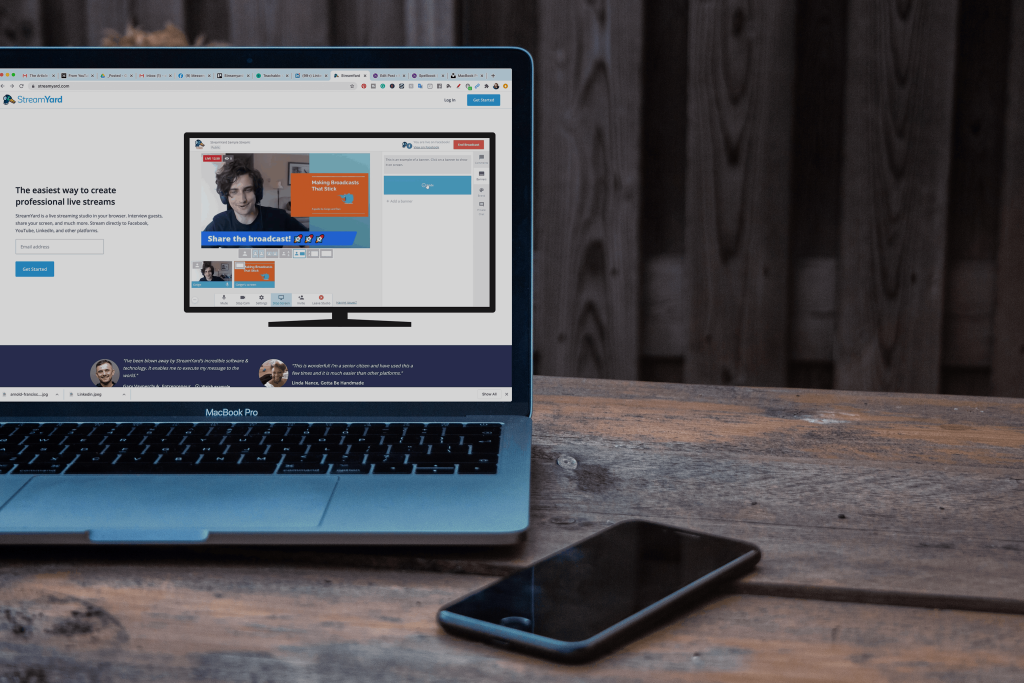
There are so many great features available on Streamyard for all of your live streaming needs. But one of the features that a lot of people overlook is the record only feature on Streamyard. In this post, I’m going to break it down for you. Why you want to use the record only feature, how you use the record only feature, and how you can go live after you have prerecorded your video. Why Use the Recording Feature So why would you want to use the record only feature on a live streaming tool? Well, a lot of people had requested this from Streamyard when they were going through their initial setup and creation of the tool. To figure out how people were using it, I turned to the streamer community over on Facebook and asked how are they using it for the record only? And the answers I got back were so great. I had to share them with you here. Use Recording For Testing The most popular reason was for testing. One of the things that’s so uncertain about live-streaming is, is this going to work right? Is my new tech going to work? Is my internet going to work? And so many different things. So by testing out the record only, you can not only go through your live-stream as a demo, but you’re also going to be able to then play it back for yourself, like in a movie file or something and see what went wrong, what was working, what wasn’t and all that good stuff. That’s why Streamyard is so powerful; it’s not only setting you up for successful live-stream but also giving you ways for you to test it as well. Use Recording for Presentations A lot of people also like to use Streamyard for recording presentations, tutorials courses, all of those educational based things, because of one really cool feature: you can have your information on the screen, as well as your face on the side because Streamyard allows you to have different ways to layout who is on the screen and what it looks like, whether your face is big, your presentation is small or vice versa, or just the presentation or just your face. There are so many different ways that you can use the layout in Streamyard. It’s going to make it really fun and interactive for you to have a next-level presentation for whatever you’re trying to do. Why Pre-Recording is so Versatile Now, oftentimes when we are live-streaming, we don’t always have the option to go live. Maybe we have an interview that we really want to do, and the person just can’t make themselves available or maybe you’re going to have really spotty internet, or maybe you’re going on vacation and you just want to have the option to go live at a different time. Well, if you use the record only feature, you can sell all of the benefits and features that are available to you from stream yard. And then you can just kind of go live later. A lot of people also like using the record only tool for the podcast recording. Again, you can have guests on, you can do things on the screen, all of that really great stuff, or maybe you’re going to edit it later. So if you know that you’re gonna flub up or something happens like the dog barks, if you’ve got kids around, but you really have to get something recorded, record only allows for you to record those videos in a fun, interactive way. Again, using those Streamyard features that aren’t available to you when you’re just putting up a camera and hitting record. How to Record with Streamyard Okay, so when we’re getting started we’re going to go to Streamyard and click create a broadcast. You have all of the different destinations that you’ve created, but we want to skip the destinations and click record only. This is where we’re going to put in what we’re going to do. So, I have a presentation that I need to record for a podcast summit that I’m participating in. So I’m going to enter my broadcast and I also want to add in my presentation. So what I’m going to do at the bottom is hit screen share, and I’m going to pick the tab I want to be able to show on the screen. It will automatically pop me over to the place I want to screen share from, and I don’t want to do that. So I’m going to click back onto Streamyard. I’m going to add myself to this stream. And once you are here you can change the layout, make yourself bigger or smaller, make the presentation bigger or smaller, have just yourself or just the presentation. I can change out my branding to match what I am doing. Let’s say I’ve done my full presentation. I’ve played with all the things, added all of my overlays and I hit end broadcast. Now what I need to do is download the recording. So I hit links and I download my recording and I can do my recording only, or my audio-only, I’m going to do the recording and then it’s just going to download it. Streamyard saves your recordings for up to 15 days, I recommend downloading them once they are done so that you have them natively on your computer. And as you can see, to make computers. So, here’s my video that I did with my live-stream. What to do with Your Recorded Video So now that you have recorded your video and it’s all set to go, you want to go live with that video, but you can’t because it’s prerecorded. So how do you do that? Well, that’s where today’s sponsor Live Pigeon comes in. Live Pigeon allows for you to live-stream your prerecorded content, to Facebook and YouTube So incredibly easy. I literally use this tool
How To Monetize Videos On Facebook Page // Understanding Facebook Monetization
I was recently asked in my YouTube comments, how do I monetize my channel on Facebook? What does that look like? So in this post, I’m going to break down for you what Facebook monetization looks like for your videos. How to Monetize Your Facebook Page If you’re looking to monetize your Facebook channel, you’re going to want to get started with a really good content strategy because a content strategy is the foundation for everything that you’re going to do on social media and really for marketing in general. There are three ways for you to monetize your content on Facebook. The first way is Facebook subscriptions. Second is going to be with in-stream ads and the third is going to be with brand collaboration. So let’s dive into each one of these, so you know what they are and what the requirements are for you to qualify for them with Facebook. Facebook Fan Subscriptions All right, with fan subscriptions, this is where you can do a monthly recurring subscription with your followers to give them extra added value. This could be extra training, extra digital services, one on one consultations. Whatever it is that you want to charge people on a monthly basis, you can do this with Facebook fan subscription. So in order to qualify for fan subscriptions, the first thing is you have to have 10,000 people that follow your page, and you’re going to need one of these two things. You’re going to need 5000 post engagements over the course of 60 days, or you’re gonna need 180 views on your videos, again, in the course of 60 days. These are the measurements that Facebook has so that they know exactly like how engaged people are going to be when it’s really worth it for them to offer this to you and really even if to be worth your time. They want to make sure that you have a really good audience in place that’s engaging with you before you offer something like this. Brand Collaborations Next, let’s talk about brand collaborations. Brand collaborations allow for other brands to find you and use your followers to promote their products or service. You would post as yourself promoting their product or service. You can do this with things like products, merchandise, all kinds of stuff. So once your qualified, brands can reach out to you and offer you money in exchange for postings. People are still iffy on whether this is a good thing or not. It allows for brands to connect with people in a new trusted way because Facebook is acting as the hub, and there’s a whole qualification process, but oftentimes people feel that they’re not getting offered enough money for what it’s worth, especially because Facebook is taking such a big percentage of these posts. That’s why a lot of people choose to do this themselves, but you might not be able to have access to brands any other way, so it’s still worth opening up for your page. So how do you qualify? In order to qualify, you have to have a minimum of 1000 followers. That’s their measurement for getting started with this, and then they want you to have 15,000 engagements in 60 days, or they want you to have 180,000 views on your videos over the course of 60 days, or they want 30,000 one minute views on your three or longer minute videos. I know it’s kind of a tongue twister but stick with me here. In-Stream Ads The next one that we’re going to talk about is the most popular and the most lucrative, this is going to be in-stream ads. Have you ever been watching a Facebook video and at that 60-second mark, an ad pops up, and it’s usually 10 to 15 seconds promoting something like a product or a service or something local to your area? Well, these are called in-stream ads, and this is how a lot of video creators have found financial success on Facebook. So in order to qualify for in-stream ads, you have to have a minimum of 10,000 followers and 30,000 one minute views on your videos that are over three minutes long. This is why I emphasize a lot in this channel that you should be making long-form videos on Facebook that are a minimum of three minutes long because eventually, you’re going to qualify for in-stream ads which are a great way for you to make residual income. Live Stream Videos So I know what things that you’re probably already asking me, “Well Desiree what about live stream videos?” In order to qualify for your live streams to get ads, you need to have a minimum of 2000 followers and your live stream needs to get 300 concurrent views at one time. So how this means is one you have 2000 followers, and over 300 people are watching your live stream at one point, but what’s really cool is that once you meet this qualification, literally while you’re live streaming, you’ll get a little pop up on Facebook saying this qualifies for an ad break, and you can take it to make ad revenue from your live stream. What’s kind of neat about this is it has a lower threshold for followers, but a higher view count during that live stream. A lot of people will get their views for their live streams afterward. So this is a good thing for you to work towards on your live streams. Checking Your Qualifications Now I’m going show you how you can check to see if your Facebook page qualifies for any of these monetization features. To get started, you’re going to go to business.facebook.com/creatorstudio, where you’re going to have all of your Facebook pages and what’s going on in here. You’re going to go down to the left-hand side to monetization and you’re going to see what you are eligible for based on the page
How To Change Template on Facebook Business Page – Facebook Page Templates 2019
Facebook Page Templates 2019 – How To Change Facebook Templates // Facebook Business Pages are a great way to boost sales, grow you brand and advertise your services or events. In the recent F8 Facebook changes we now have even more choice and features to help boost your Facebook game.
How To Make a Facebook Video Profile Picture
How To Make a Facebook Video Profile Picture // Stand out on Facebook with some video wizardry. Its time to make your facebook profile pic, into a facebook profile video!
Holiday Marketing Content Plan – Halloween, Thanksgiving, Christmas Content Ideas and more

Holiday Marketing Content Plan – Halloween, Thanksgiving, Christmas Content Ideas – The Holiday season is the most profitable period for retail sales. Season starts after Halloween and culminates in the New Year’s Eve. Holiday season statistics are: 74% of retailers say 20% or more of their annual sales occur during the holiday season.
How To Use Sendible – The Best Social Media Management Tool
How To Use Sendible – The Best Social Media Management Tool // What if you could manage your social media and your clients social media in bulk all in one place within one very easy to use tool. Sendible is a life saver and a time winning tool that can automate your social media and maximise your ROI.
How To Use Sendible – The Best Social Media Management Tool
How To Use Sendible – The Best Social Media Management Tool // What if you could manage your social media and your client’s social media in bulk all in one place within one very easy to use tool. Sendible is a lifesaver and a time winning tool that can automate your social media and maximize your ROI.
How To Go Live On Facebook in Landscape Mode
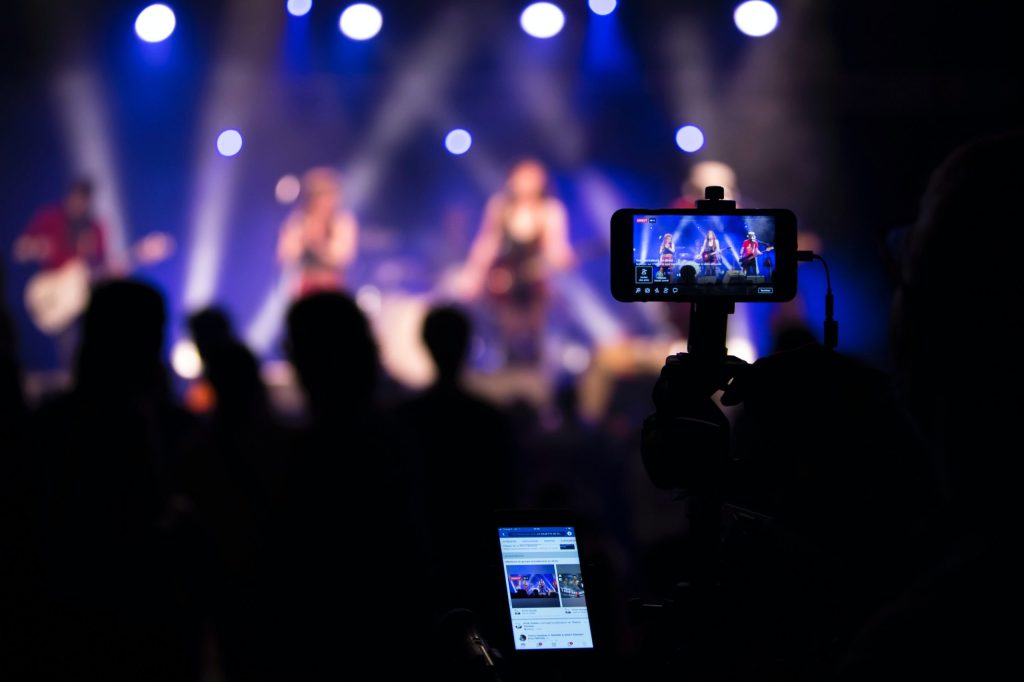
How To Go Live On Facebook Horizontally – Facebook Live Landscape Mode // Mobile live streaming is all the rage these days. You can go live to your social media followers from your mobile device from anywhere and at any time.
How To Link Facebook To Instagram – Link Instagram To Your Facebook Business Page
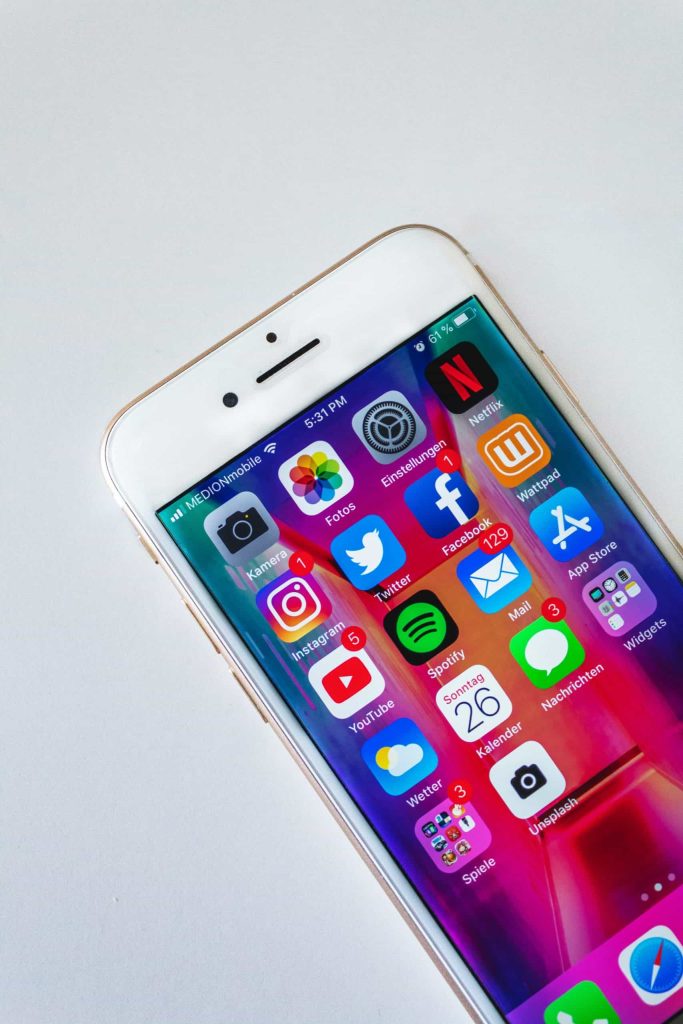
How To Link Facebook To Instagram – Link Instagram To Your Facebook Business Page – Link Facebook To Instagram to help you boost your reach. Linking Your Instagram Account to Your Facebook Business Page will help you to advertise using Facebook ads to Instagram users and share the audience analytics to target your clients and potential leads better.
How To Link Facebook To Instagram – Link Instagram To Your Facebook Business Page
How To Link Facebook To Instagram – Link Instagram To Your Facebook Business Page – Link Facebook To Instagram to help you boost your reach. Linking Your Instagram Account to Your Facebook Business Page will help you to advertise using Facebook ads to Instagram users and share the audience analytics to target your clients and potential leads better.