
How to Streamyard: Using Streamyard Record Only Feature AND How To Go Live Later With Recording

There are so many great features available on Streamyard for all of your live streaming needs. But one of the features that a lot of people overlook is the record only feature on Streamyard. In this post, I’m going to break it down for you. Why you want to use the record only feature, how you use the record only feature, and how you can go live after you have prerecorded your video. Why Use the Recording Feature So why would you want to use the record only feature on a live streaming tool? Well, a lot of people had requested this from Streamyard when they were going through their initial setup and creation of the tool. To figure out how people were using it, I turned to the streamer community over on Facebook and asked how are they using it for the record only? And the answers I got back were so great. I had to share them with you here. Use Recording For Testing The most popular reason was for testing. One of the things that’s so uncertain about live-streaming is, is this going to work right? Is my new tech going to work? Is my internet going to work? And so many different things. So by testing out the record only, you can not only go through your live-stream as a demo, but you’re also going to be able to then play it back for yourself, like in a movie file or something and see what went wrong, what was working, what wasn’t and all that good stuff. That’s why Streamyard is so powerful; it’s not only setting you up for successful live-stream but also giving you ways for you to test it as well. Use Recording for Presentations A lot of people also like to use Streamyard for recording presentations, tutorials courses, all of those educational based things, because of one really cool feature: you can have your information on the screen, as well as your face on the side because Streamyard allows you to have different ways to layout who is on the screen and what it looks like, whether your face is big, your presentation is small or vice versa, or just the presentation or just your face. There are so many different ways that you can use the layout in Streamyard. It’s going to make it really fun and interactive for you to have a next-level presentation for whatever you’re trying to do. Why Pre-Recording is so Versatile Now, oftentimes when we are live-streaming, we don’t always have the option to go live. Maybe we have an interview that we really want to do, and the person just can’t make themselves available or maybe you’re going to have really spotty internet, or maybe you’re going on vacation and you just want to have the option to go live at a different time. Well, if you use the record only feature, you can sell all of the benefits and features that are available to you from stream yard. And then you can just kind of go live later. A lot of people also like using the record only tool for the podcast recording. Again, you can have guests on, you can do things on the screen, all of that really great stuff, or maybe you’re going to edit it later. So if you know that you’re gonna flub up or something happens like the dog barks, if you’ve got kids around, but you really have to get something recorded, record only allows for you to record those videos in a fun, interactive way. Again, using those Streamyard features that aren’t available to you when you’re just putting up a camera and hitting record. How to Record with Streamyard Okay, so when we’re getting started we’re going to go to Streamyard and click create a broadcast. You have all of the different destinations that you’ve created, but we want to skip the destinations and click record only. This is where we’re going to put in what we’re going to do. So, I have a presentation that I need to record for a podcast summit that I’m participating in. So I’m going to enter my broadcast and I also want to add in my presentation. So what I’m going to do at the bottom is hit screen share, and I’m going to pick the tab I want to be able to show on the screen. It will automatically pop me over to the place I want to screen share from, and I don’t want to do that. So I’m going to click back onto Streamyard. I’m going to add myself to this stream. And once you are here you can change the layout, make yourself bigger or smaller, make the presentation bigger or smaller, have just yourself or just the presentation. I can change out my branding to match what I am doing. Let’s say I’ve done my full presentation. I’ve played with all the things, added all of my overlays and I hit end broadcast. Now what I need to do is download the recording. So I hit links and I download my recording and I can do my recording only, or my audio-only, I’m going to do the recording and then it’s just going to download it. Streamyard saves your recordings for up to 15 days, I recommend downloading them once they are done so that you have them natively on your computer. And as you can see, to make computers. So, here’s my video that I did with my live-stream. What to do with Your Recorded Video So now that you have recorded your video and it’s all set to go, you want to go live with that video, but you can’t because it’s prerecorded. So how do you do that? Well, that’s where today’s sponsor Live Pigeon comes in. Live Pigeon allows for you to live-stream your prerecorded content, to Facebook and YouTube So incredibly easy. I literally use this tool
Create Gary Vee Style Videos For Social Media // What To Do and HOW to Do It!
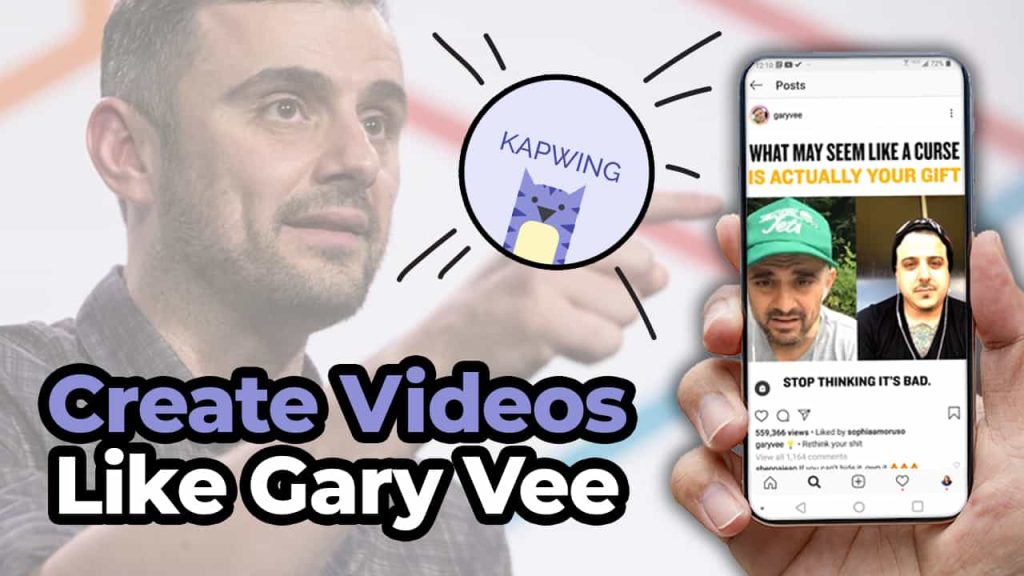
There is no denying that Gary Vee is prolifically using social media to grow his brand. Sometimes you go on all these different social networks like Facebook and Twitter and Instagram and LinkedIn. And he is just there creating totally unique content for each platform. And it can be really overwhelming for those of us that are trying to figure out just how to create one video that does one thing. Stay tuned to find out ’cause in this video we’re gonna break it down for you. So it’s gonna be super easy for you to do. Create Like Gary Vee Gary Vee’s strategy is so prolific and he is constantly creating new content for all of us to consume. So how are you, a normal business owner, supposed to really create content as much as Gary in the way that he does? Now I was fortunate enough to get to meet Gary Vee back in 2013. When I was like some odd weeks pregnant and I got his new book “Jab, Jab, Jab, Right Hook.” And it really kind of transformed how I was doing with social media and how I looked at things. I really entered into a world of time to solve people’s problems. And that’s exactly what I preach here on this channel like Gary does all the time. Show up for people and solve their problems. Well, I’m about to solve a really big problem for you. Which is how can you easily create videos as frequently as Gary? Work Smarter Not Harder And with that, we’re going to also include today’s sponsor for this post, Kapwing, which is my go-to website and resource for creating all of my social videos for my business and also for my clients. Kapwing is fantastic for resizing videos, adding closed captions, doing progress bars. Just making your videos look really awesome for social media. Super, super easy. So in this post, we’re gonna dissect three things that Gary Vee is doing so that you can apply this strategy to your business. One, we’re gonna go over how he creates his content. What you can learn from it and how you can do it with a little help from Kapwing. How Gary Creates One of the things that’s incredibly unique about Gary is that he is always recording video. He actually has people that follow him around on a constant basis filming him when we’re not in COVID. And even through COVID, he has taken to doing his “Tea With GaryVee” where he is live streaming on a regular basis. To create content to talk to people who are part of his fan base he can help. But this can be really hard for you. Especially because like I said, you’re probably a normal person who is busy working in their business. No one is expecting you to be Gary Vee. It would be really awesome if you have someone that can film you. Or maybe if you have a special occasion or an event that you’re doing. You could probably have someone come in and film for you. But for the most part, it’s going to probably be a little bit harder for you to create as much content as Gary does. So how can you do this? Record Everything Well, the first thing I’m going to advise you to do is do consider recording every meeting that you have. That’s right. Get on to Zoom, do a live stream, and talk to your potential customers and your current customers. You never know when that little stroke, that line, that little 30 seconds to a minute piece of genius is gonna come out of your mouth. So why not be ready when it does? Because I can’t tell you how many times I’m having a conversation with somebody I’m like, “Aw man, that was really good, I wish I had recorded that.” We live in a world where live streaming and Zoom are just kind of the new normal. So no one is going anything to bat an eye at you recording or using this footage over again for your social media content. So really take that cue of Gary recording everything that he’s doing and find a way to do that for yourself as well. What do people keep asking you? My second tip for you when you’re trying to record a video is really sit down and look at what are the things that people keep asking you questions about? Are you getting these emails, maybe a text message? Or are you fortunate enough to be getting these questions on social media or on your YouTube videos? Take these questions, sit down with your camera just like I’m doing with you right here. And just have a conversation with the camera or aka Bob to solve his problem. By solving other people’s problems it’s going to come across as so genuine and so real. And this is a no SEO moment. The reason this is a no SEO moment is that it’s not about getting found in search and doing all the stuff. It’s about connecting with people by solving their actual problems. These sort of videos are going to allow you to really connect with people and have that emotional bond that you are hoping to get. That comes from answering questions from your customers. Not everything is about being found in search. Sometimes it’s about helping people with their actual problems right then and there. And I might add, this is something that Gary does all of the time. So if we’re here to be like Gary, this is how you do it. Get the Look Now let’s dissect the physical look of a Gary Vee video and why it is successful. The video I reference has three main parts. We have our text and title at the bottom. We have the actual video in the middle. And at the bottom, we have
Why You Should Use Hashtags On Facebook // Increase Your Organic Reach on Facebook With Hashtags
You probably got a notification recently that said if you want to increase your engagement and reach for your posts, you should add hashtags. Does this mean that Facebook is actually caring about hashtags for their algorithm? Keep reading and find out! History of the Hashtag Now, hashtags are going to be a vital part of your content strategy going forward after you read this blog. Hashtags came to Facebook way back in 2013, and they really didn’t do much with them. They were kind of like, yeah, we’re okay with them, but it doesn’t do anything. Now, unlike other platforms like Twitter and Instagram and LinkedIn where hashtags are a vital part of your post’s success, Facebook has, for the most part, been like, whatever, but now they’re actually giving it the attention and weight that it deserves to increase the organic reach of your post. So this all started back in May of 2020 when Facebook decided to push #supportsmallbusiness. This was to allow users in local areas to support their local businesses to help keep them alive through the COVID pandemic crisis. Since then, they’ve encouraged Facebook pages to add hashtags to their posts so that they can boost engagement and reach. While it really isn’t clear what this has to do with the algorithm or how it works, Facebook has said add hashtags to your posts to give it the little bump in organic reach that it has, and let’s be honest, I think all of us will take any little bit of organic reach that we can when it comes to Facebook. How do they work?! So how do hashtags work on Facebook? Well, it’s just like everywhere else. You take one word or a series of words with no spaces and add that pound or number sign to the front of it. When you add it to your Facebook post, I encourage you to put it at the bottom and make sure not to do too many because that’s just tacky, and remember, your Facebook audience is just going to be getting used to you using hashtags again on this new platform. You have to remember, your viewers aren’t used to you using hashtags on Facebook and they’re probably not used to seeing them either. So use them very lightly and delicately when you’re adding them to your posts. Once you have made that hashtag for your post, it becomes a button that you can click and it will take you to other posts that you have that have your hashtag included. So let’s use puppies for example. If you add puppies to your post and you click on that puppies hashtag, you’re going to be taken to a hashtag list on Facebook that’s going to list all of the awesome hashtags that have puppies on it. Now, what’s really cool about this is that Facebook is giving weight to the immediate community that you have. This means that your friends and the pages that you follow and interact with most that are using #puppies are going to show up at the top, and then underneath it is going to be the second layer and that’s going to be people who are connected to the people that you are friends with, the post they have with #puppies in it. Then after that, it’s just kind of anyone that’s using it most recent or for posts that you probably would interact with more. Now, if you want to research what hashtags you should use, which ones are going to be most relevant, maybe you want to claim your hashtag for your business, you can go up to the Facebook search bar at the top and just type in the hashtag and see what comes up. This is going to be a great way for you to not only figure out what hashtags you should be using for your business, but it’s also going to allow for you to get really involved in your local community and see what are the hashtags that are happening around me and in my specific vertical or area? Helpful Tips Now, a tip for you to have more success and ease of use when it comes to hashtags on Facebook is you should create a list of hashtags that you can kind of use for different styles of posts. Now, a lot of us Instagram users are going to teach you that you should create groups of hashtags that you can copy and paste and use in your post. For example, I have a whole list of hashtags for social media, a whole list of hashtags for my podcast, and a whole list of hashtags for being a YouTuber. By having these groups, it’s easy for me to copy them and then paste them into my content calendar to schedule that out. The same thing can be done with Facebook. You should be creating three to five hashtags that you can use for different types of content you’re creating. Whether you’re doing behind the scenes or promoting a product or day in the life or whatever it is that you’re doing, create a bunch of different ones that you can keep referencing so that you can add them to your post. Now, you might be a little bit skeptical at this point, but I promise, you definitely want to be adding hashtags into your post. Facebook guru Mari Smith even revealed to us that Facebook is testing a button for browsing. With this feature, there is going to be a ‘see more posts with this hashtag’ button and you can click it and go see them, rather than just having that button in the post. Facebook is definitely giving hashtags attention and you need to make sure that your brand is a part of it. When it comes to etiquette, as I said earlier, make sure that you’re not doing too many hashtags and definitely don’t do something like