Tina Peterson

CASE STUDY THE TINA PETERSON TEAM “We had great content, but we weren’t sure what to do with it next.” How we helped The Tina Peterson Team turn TV-quality content into a local marketing system. Start Your Clarity Check Contact Us YouTube-First Strategy Repurposed Content Local Engagement Marketing Support System 01 Starting Reality The Tina Peterson Team came in through a referral and was originally looking for support with YouTube management. But the need was bigger than simply having someone manage a channel. The team had strong content from a show with TV-quality production value, but there was uncertainty around how to turn that content into practical marketing value. There were questions like: What happens after the content is created? How should the content be used across channels? How can the investment support organic reach? How can it drive stronger local community engagement? How can it connect back to revenue? The content was strong, but the strategy around it needed more structure. 02 Pattern Identified The issue was not a lack of content. The issue was that the content was not being used intentionally enough to support the business. The team had already invested in quality production, but the content was not yet turning into a repeatable visibility and engagement system. What was missing: a clear YouTube-first plan stronger organic distribution intentional local engagement better repurposing across marketing channels clearer messaging around the purpose of the content a system for connecting content to business growth The Reality: There was content, but no clear path. There was visibility potential, but no system. There was investment, but not enough structure to turn that investment into measurable business value. 03 The Breaking Point The team had great content for a show, but they were not sure what to do with the expense they were putting into it. The question became: “Then what?” Content was being created, but it was not turning into the kind of business momentum that could justify the investment. The work needed to move beyond uploading videos or managing a channel. It needed to answer a bigger question: How can this content become a marketing asset that builds trust, strengthens local presence, and supports revenue growth? 04 The Shift Instead of treating the need as simple YouTube management, The Kast Agency reframed the opportunity around a larger marketing support system. The focus shifted from: managing content in isolation treating YouTube as the only channel using generic messaging posting without a broader local engagement plan To: building a YouTube-first marketing strategy repurposing content intentionally strengthening organic reach connecting content to local visibility creating opportunities for community engagement making the content itself do more This created a more intentional path for the team’s content investment. 05 What Was Built: The System The Kast Agency created a YouTube-first marketing plan for The Tina Peterson Team that helped repurpose TV-quality content for organic reach and local community engagement. The work included: reviewing how existing content could be used more strategically identifying ways to turn long-form content into smaller marketing assets improving how the content supported local visibility shifting generic messaging into more intentional positioning creating a clearer plan for content distribution connecting video content to broader marketing activity The goal was to make the content easier to use, easier to extend, and more connected to the team’s business development goals. 06 What Was Built: The System Beyond content planning, the work expanded into local engagement and marketing coordination. The Kast Agency supported: optimization email marketing updates local engagement opportunities events local collaborations and partnerships local press opportunities radio station opportunities magazine opportunities The work helped the team move from content creation alone into a broader marketing support system. Instead of asking the content to work by itself, the system helped the team use that content as a foundation for local visibility, relationship-building, and community presence. 07 What Changed: True Value Created The biggest shift was that the content became more intentional. The team moved from having strong video assets to having a clearer strategy for how those assets could support organic reach, community engagement, and business growth. The work helped: give the content a stronger purpose connect video to local marketing efforts create more ways to repurpose existing assets make marketing feel more coordinated support the team with a clearer plan turn content into a more useful business asset The value was not only in producing more content. The value was in making the content do more. 08 What Changed: True Value Created Before working with The Kast Agency, the Tina Peterson Team had a strong content investment but needed a clearer system for using it. After the work, the team had a YouTube-first marketing plan and a broader support system for using content across organic, local, and community-driven channels. The work created a shift from: content without a clear next step strong production without enough marketing direction generic messaging limited local engagement structure To: intentional content repurposing stronger organic reach clearer local visibility more community-based marketing opportunities a support system that helped connect content to growth Before / After Before After Great content, but no clear next step A YouTube-first marketing plan TV-quality content without enough marketing structure Content repurposed for organic reach Generic messaging More intentional positioning Limited local engagement strategy Stronger community-focused visibility Content investment not clearly tied to revenue A marketing support system built around growth “The content was already strong. The shift was making it work harder, reach further, and support the business in a more intentional way.” Ready to make your content work harder for your business? If your business is creating content but still wondering what comes next, The Kast Agency can help turn your assets into a clearer marketing system. Contact Us

Beginner’s Guide to the NEW Instagram Interface!

Now if you’re new to instagram or you’re just trying to understand it better, you are in the right place.  If you’re a visual learner, I have a video up as well!   When you open the app, it first takes you to your feed. This is where you’ll find photos and videos from people you’re following as well as advertisements. Unlike Facebook which gives you recommended posts, your Instagram feed is only based on the people you’ve chosen.  On the top of your feed, you can see Stories. These are a fantastic way to connect with your audience. Stories stay up for 24 hours at a time.  When you reach 10,000 followers, you’re able to add a swipe-up link to your stories! Instagram in the upper left hand corner brings you back to the news feed.    New Post  On the right side, the plus sign is for a new post.  Once you add your photo, you can add filters, edit the lighting, etc. this hasn’t changed much through the evolution of Instagram.  When you hit next, you can add your caption, location details, and tag other accounts. You can also add a business partner if you’re working with a brand in the post and have your IG business account set up. (I have a whole video on this right here!)  Don’t forget to put a “.” or emoji between the lines of your caption. For example:   I’m over here doing a tutorial on the IG interface! . Comment below and say hey!   You can also use up to 30 hashtags. From what I’ve found, it’s best for the algorithm to leave them in the post rather than using in the first comment.  You have the option to crosspost to other platforms as well!    Activity Next to the plus sign is a little heart.  This is where you will find all of your notifications. New followers, likes and comments show up here in chronological order.    Chat This is where the one-on-one conversations can happen. Messages are split up into Primary and General, so you can organize your messages based on whether you talk to someone a lot or if they had a one-time question.  Message requests are from people you aren’t yet connected with. You can accept or deny any message requests.    Explore Page  The little search bar icon brings you to the explore page. This is the discovery feature of instagram. This is based on your individual activity and what you interact with on the app. You can also go further into a specific category.    Scan code  This is available if you want someone to easily access your account. You just hold this up to their phone and the link will come up.    Reels  These are Instagram’s version of TikTok that just rolled out a few months ago. Reels are a great way to make fun, informative content for your audience. You can do challenges, new funny trends, etc. you can also save a reel for inspiration by clicking the 3 dots under and hitting save!  Instagram is really pushing Reels in the algorithm, so they can definitely help if you’re looking for growth.    Shopping  This is again based on brands you follow and engage with. You can easily access the website from this. It’s great to utilize if you have a product or online store!   Profile  And lastly is our profile. The username is where you may switch accounts if you have multiple pages that you manage.  The plus sign is to create a new post again. It could be a feed post, story, story highlight, IGTV video, reel, or guide.  The three lines are the ins and outs of our account.  When there’s a circle around your profile picture, it means you have a story up.  Your biggest POW is in your first few lines of your bio. You want to tell someone about you with a quick glance at their page! Try to stray away from having to click ‘more’ to read your whole bio.  Edit profile is pretty self-explanatory.  Promotions and insights are other features of the IG business account.  All the circles are Stories Highlights. As I mentioned before, stories only have a 24-hour shelf life, so if you want to keep them relevant, you can save them to a story highlight.  Your page is then divided by your own grid, your reels, your IGTV, and your tagged photos. The feed is very important to establish your brand.  I highly suggest making a brand board that decides on a few fonts, colors, and an overall look and feel.  You can decide whether or not Reels and IGTV videos show up on your grid. I suggest posting them on your feed because they will get much more traffic!    

Basic Live Streaming Studio for ANY Business Owner [DIY & Gear]

home office studio

Like most of us, I had to find a new way to work in this 2020 pandemic world. My house has been taken over by my family so I’ve actually converted a space in my parents house into my YouTube studio. I wanted to show you how I set up a functioning space that looks and works really great, plus the gear I used along the way.      Starting to Set Up First things first, there’s a lot of stuff to deal with in this room. As my mom says, the piles of stuff are ‘projects…’, but in this situation, it actually really helps. The room I work in has vaulted ceilings, so having more stuff in the room helps to reduce echo.  I started by moving my desk in order to have it up against the wall. Then, I set up my backdrop – one of my very first ‘home studio’ items. As a military spouse, I’m used to not leaving any holes in the walls. I use this super sturdy double-sided tape that’s basically a huge Command strip.  Let’s talk Lighting  Ring lights are probably your best bet for just starting out. You can put your webcam right on the light and change the angle depending on where you’re filming. The ring light offers constant lighting that you can rely on.  I’m also setting up my office with LED panel lights.  Something I absolutely hate about lights is having to turn them on every time. I love using smart plugs that connect to your Alexa or Google home and using voice commands to turn my lights on and off. Honestly, they’re a lifesaver.  Webcams  Your webcam is obviously a crucial part of I use an app on my Mac called Webcam settings to adjust zoom, pan in and out, etc and you can save your settings for future use as well. It’s so convenient because you can frame yourself exactly how you like while also sitting wherever you want in front of the camera.  So after my computer is set up with the webcam and lights, I also have to figure out how to set up my camera for you guys on YouTube. It’s a totally different setup! I’m planning on getting a bookshelf up in the corner with some decorations to add a little personality into the frame.  The Importance of your Background  Why does your background need to look good? Your backdrop says a lot about you and what you do as a creator. It’s an extension of who you are and it helps a lot with your personal branding.  With my background, I keep this brick backdrop very simple. For the bookshelf, I try to add little things that are quirky to my personality and relevant to my brand. I also have some little fun things that just make me happy.  Your background shouldn’t be too busy or distracting either. It should set the scene for your videos without taking the attention off of you! Microphone  The microphone I have is a blue yeti. Usually it’s on a stand but mine is on an arm to move around. I’ll probably be upgrading soon, but I really love this mic. The cover helps with the echo that happens in this room.  To recap… First things first, make sure you have good access to outlets, ethernet, and that you can keep the setup up. Make sure you have a good background that’s an extension of you and your brand without being too distracting. You also want to make sure that you look and sound your best with lighting, webcams and microphones.  That’s really the basics of what you need to create an effective home studio and office. Having a dedicated space for creating is vital to your success.  Now that you’re ready to go, check out my other posts & videos for all things live-streaming.

Why You Should Go Live On YouTube Premier vs Live – Which Should You Do
I love YouTube! I think it’s a great way to connect with people, solve problems, and be entertained on a regular basis. But, as a YouTube creator, I run into a lot of questions that I’m asking myself. Things like, “Should I be using Premiere?” “Should I just be pre-recording stuff?” “What am I supposed to be doing with this whole live-streaming thing?” And let’s not even go into how analytics are just a whole mess to try and figure out. It definitely takes a lot of work. But in this post, I really want to dive into, why you should be live-streaming versus using Premiere or even just posting out pre-recorded videos.   Let’s Dive into Live Pigeon Now, recently I was introduced to this really wonderful, awesome, amazing, tool called, LIVE pigeon. You’re going to want to use LIVE pigeon because it’s going to let you live-stream, pre-recorded videos to your YouTube Channel. Can we just take a minute to let that marinate about how awesome that actually is? Oh, you don’t know why? Okay, so let’s dive into this. So I’ve been getting asked a lot, why should I live-stream these pre-recorded videos versus just doing a Premiere? Well, the thing is, is that YouTube does things in their own unique way. And every feature has a special way of putting things out into the Universe. So, with the Premiere feature, it allows you to take your pre-recorded, beautifully put together video content and watch it with your audience. You can schedule this out. You get this little like video schedule thing that goes up on your YouTube interface and you’re able to see like, “Hey, this person has a video coming out at this time!” And you guys can watch it together. And just like a live-stream, you have a chat that happens at the same time. There are a lot of really great benefits like you can get Super Chats and you can do your Memberships, and all of that great stuff for additional revenue options, when it comes to YouTube. However, the Premiere feature notification system is kind of limiting, in my opinion. 30 minutes prior to your video going live through the Premiere, and when it actually goes live through the Premiere, YouTube pushes the notification to your bell subscribers that this video is happening, and hopefully, it pulls them in to watch with you. And then you can have the chat and watch the video together. This is a really nice idea, but if you want to increase people watching your video when it happens, you’re going to want to do it as a live-stream. Live Stream on Youtube Live-stream on YouTube is very similar to Premiere. You can schedule it out, you put the notifications up, you can fill in your titles and your thumbnails, and all of the things. But the promotional system is very different for live-streams versus Premieres. So not only are you going to get the usual bell notifications and all that kinda jazz that come with new videos going up. So when your video is live, you’re more likely to get people who have never been apart of your YouTube journey or who have subscribed to you, maybe haven’t visited your channel in a while, and they’re gonna be like, “Oh, yeah, I’m gonna go watch that video, because that looks really interesting.” I personally have seen a gigantic increase in my initial views and my day one views by doing pre-recorded live videos versus using Premiere, which I was also using very adamantly as well. So with live-stream, we’re going to be able to schedule those pre-recorded live videos so that you can do all of the same things that Premiere, but get the benefit that YouTube has for you with Live. Now, if you just wanna live-stream, go for it, go nuts. In fact, I would encourage you to use a third-party tool, like StreamYard, which allows you to go live, interact, engage, answer questions, and go for long amounts of time to your heart’s desire. But, if you have a channel kinda like mine, where you’re resource-driven and you put a lot of time and energy and research into what you’re going to do to share and connect with your audience, especially when it comes to respecting their time, definitely check out LIVE pigeon. And until next time, I’ll see you soon.

How To Live Stream Recorded Video SUPER EASY!!
Something I get asked all the time is how do I Livestream my prerecorded content. Well up until now, there was not an easy way to do it, but in this post, I’m gonna show you how you can do it so easy you’re never gonna want to Livestream any other way ever again.

Create Gary Vee Style Videos For Social Media // What To Do and HOW to Do It!
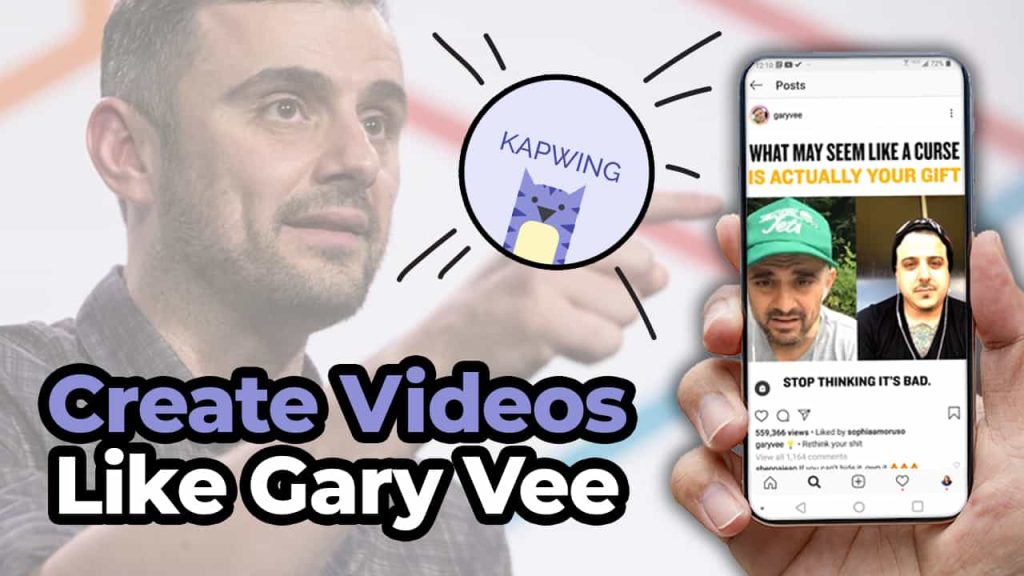
Create Like Gary Vee

There is no denying that Gary Vee is prolifically using social media to grow his brand. Sometimes you go on all these different social networks like Facebook and Twitter and Instagram and LinkedIn. And he is just there creating totally unique content for each platform. And it can be really overwhelming for those of us that are trying to figure out just how to create one video that does one thing. Stay tuned to find out ’cause in this video we’re gonna break it down for you. So it’s gonna be super easy for you to do. Create Like Gary Vee Gary Vee’s strategy is so prolific and he is constantly creating new content for all of us to consume. So how are you, a normal business owner, supposed to really create content as much as Gary in the way that he does? Now I was fortunate enough to get to meet Gary Vee back in 2013. When I was like some odd weeks pregnant and I got his new book “Jab, Jab, Jab, Right Hook.” And it really kind of transformed how I was doing with social media and how I looked at things. I really entered into a world of time to solve people’s problems. And that’s exactly what I preach here on this channel like Gary does all the time. Show up for people and solve their problems. Well, I’m about to solve a really big problem for you. Which is how can you easily create videos as frequently as Gary? Work Smarter Not Harder And with that, we’re going to also include today’s sponsor for this post, Kapwing, which is my go-to website and resource for creating all of my social videos for my business and also for my clients. Kapwing is fantastic for resizing videos, adding closed captions, doing progress bars. Just making your videos look really awesome for social media. Super, super easy. So in this post, we’re gonna dissect three things that Gary Vee is doing so that you can apply this strategy to your business. One, we’re gonna go over how he creates his content. What you can learn from it and how you can do it with a little help from Kapwing. How Gary Creates One of the things that’s incredibly unique about Gary is that he is always recording video. He actually has people that follow him around on a constant basis filming him when we’re not in COVID. And even through COVID, he has taken to doing his “Tea With GaryVee” where he is live streaming on a regular basis. To create content to talk to people who are part of his fan base he can help. But this can be really hard for you. Especially because like I said, you’re probably a normal person who is busy working in their business. No one is expecting you to be Gary Vee. It would be really awesome if you have someone that can film you. Or maybe if you have a special occasion or an event that you’re doing. You could probably have someone come in and film for you. But for the most part, it’s going to probably be a little bit harder for you to create as much content as Gary does. So how can you do this? Record Everything Well, the first thing I’m going to advise you to do is do consider recording every meeting that you have. That’s right. Get on to Zoom, do a live stream, and talk to your potential customers and your current customers. You never know when that little stroke, that line, that little 30 seconds to a minute piece of genius is gonna come out of your mouth. So why not be ready when it does? Because I can’t tell you how many times I’m having a conversation with somebody I’m like, “Aw man, that was really good, I wish I had recorded that.” We live in a world where live streaming and Zoom are just kind of the new normal. So no one is going anything to bat an eye at you recording or using this footage over again for your social media content. So really take that cue of Gary recording everything that he’s doing and find a way to do that for yourself as well. What do people keep asking you? My second tip for you when you’re trying to record a video is really sit down and look at what are the things that people keep asking you questions about? Are you getting these emails, maybe a text message? Or are you fortunate enough to be getting these questions on social media or on your YouTube videos? Take these questions, sit down with your camera just like I’m doing with you right here. And just have a conversation with the camera or aka Bob to solve his problem. By solving other people’s problems it’s going to come across as so genuine and so real. And this is a no SEO moment. The reason this is a no SEO moment is that it’s not about getting found in search and doing all the stuff. It’s about connecting with people by solving their actual problems. These sort of videos are going to allow you to really connect with people and have that emotional bond that you are hoping to get. That comes from answering questions from your customers. Not everything is about being found in search. Sometimes it’s about helping people with their actual problems right then and there. And I might add, this is something that Gary does all of the time. So if we’re here to be like Gary, this is how you do it. Get the Look Now let’s dissect the physical look of a Gary Vee video and why it is successful. The video I reference has three main parts. We have our text and title at the bottom. We have the actual video in the middle. And at the bottom, we have

Why You Should Use Hashtags On Facebook // Increase Your Organic Reach on Facebook With Hashtags
You probably got a notification recently that said if you want to increase your engagement and reach for your posts, you should add hashtags. Does this mean that Facebook is actually caring about hashtags for their algorithm? Keep reading and find out! History of the Hashtag Now, hashtags are going to be a vital part of your content strategy going forward after you read this blog. Hashtags came to Facebook way back in 2013, and they really didn’t do much with them. They were kind of like, yeah, we’re okay with them, but it doesn’t do anything. Now, unlike other platforms like Twitter and Instagram and LinkedIn where hashtags are a vital part of your post’s success, Facebook has, for the most part, been like, whatever, but now they’re actually giving it the attention and weight that it deserves to increase the organic reach of your post. So this all started back in May of 2020 when Facebook decided to push #supportsmallbusiness. This was to allow users in local areas to support their local businesses to help keep them alive through the COVID pandemic crisis. Since then, they’ve encouraged Facebook pages to add hashtags to their posts so that they can boost engagement and reach. While it really isn’t clear what this has to do with the algorithm or how it works, Facebook has said add hashtags to your posts to give it the little bump in organic reach that it has, and let’s be honest, I think all of us will take any little bit of organic reach that we can when it comes to Facebook. How do they work?! So how do hashtags work on Facebook? Well, it’s just like everywhere else. You take one word or a series of words with no spaces and add that pound or number sign to the front of it. When you add it to your Facebook post, I encourage you to put it at the bottom and make sure not to do too many because that’s just tacky, and remember, your Facebook audience is just going to be getting used to you using hashtags again on this new platform. You have to remember, your viewers aren’t used to you using hashtags on Facebook and they’re probably not used to seeing them either. So use them very lightly and delicately when you’re adding them to your posts. Once you have made that hashtag for your post, it becomes a button that you can click and it will take you to other posts that you have that have your hashtag included. So let’s use puppies for example. If you add puppies to your post and you click on that puppies hashtag, you’re going to be taken to a hashtag list on Facebook that’s going to list all of the awesome hashtags that have puppies on it. Now, what’s really cool about this is that Facebook is giving weight to the immediate community that you have. This means that your friends and the pages that you follow and interact with most that are using #puppies are going to show up at the top, and then underneath it is going to be the second layer and that’s going to be people who are connected to the people that you are friends with, the post they have with #puppies in it. Then after that, it’s just kind of anyone that’s using it most recent or for posts that you probably would interact with more. Now, if you want to research what hashtags you should use, which ones are going to be most relevant, maybe you want to claim your hashtag for your business, you can go up to the Facebook search bar at the top and just type in the hashtag and see what comes up. This is going to be a great way for you to not only figure out what hashtags you should be using for your business, but it’s also going to allow for you to get really involved in your local community and see what are the hashtags that are happening around me and in my specific vertical or area? Helpful Tips Now, a tip for you to have more success and ease of use when it comes to hashtags on Facebook is you should create a list of hashtags that you can kind of use for different styles of posts. Now, a lot of us Instagram users are going to teach you that you should create groups of hashtags that you can copy and paste and use in your post. For example, I have a whole list of hashtags for social media, a whole list of hashtags for my podcast, and a whole list of hashtags for being a YouTuber. By having these groups, it’s easy for me to copy them and then paste them into my content calendar to schedule that out. The same thing can be done with Facebook. You should be creating three to five hashtags that you can use for different types of content you’re creating. Whether you’re doing behind the scenes or promoting a product or day in the life or whatever it is that you’re doing, create a bunch of different ones that you can keep referencing so that you can add them to your post. Now, you might be a little bit skeptical at this point, but I promise, you definitely want to be adding hashtags into your post. Facebook guru Mari Smith even revealed to us that Facebook is testing a button for browsing. With this feature, there is going to be a ‘see more posts with this hashtag’ button and you can click it and go see them, rather than just having that button in the post. Facebook is definitely giving hashtags attention and you need to make sure that your brand is a part of it. When it comes to etiquette, as I said earlier, make sure that you’re not doing too many hashtags and definitely don’t do something like

Make Better Linkedin Videos // 5x Your Engagement With These Tips!
Make Better LinkedIn Videos

We no longer live in an era where you can just hide behind your logo. People now more than ever want to connect with you as an individual before they consider ever doing any kind of business with you. So in this blog I’m going to break down how you can use video on LinkedIn to grow your business, get more engagement, and hopefully close those sales.  Let me break down some facts for you about LinkedIn. There are over 675 million users on LinkedIn. It’s actually one of the few social networks that’s continuously growing and has steadily over the many many years that it has been around. You might think the content on LinkedIn is going to be geared more towards recruiters and people who are looking for a job, when in fact, 15 times more content on LinkedIn is geared towards businesses than actually looking for a job. So this is a great opportunity for you to share your information with your potential customer in a way that you never thought possible before. And LinkedIn shows that year after year engagement is increasing by 50% because more people are finding success in building business relationships on LinkedIn than they were with Facebook or Twitter or Instagram. So how can you be using LinkedIn to grow your brand and business, make more money, convert those sales, all that good stuff? Well we’re gonna be focusing on three things in this blog.    Keep Them Watching First things first, how to keep them watching, what really is going to matter, and what tips I have for you to find success. Now before we dive into these tips, I want to make sure you know that this is brought to you by Kapwing, my favorite social video platform that is available for you to use for free to create all of your videos for any social network that you’re using. I’m going show you in a minute how I use Kapwing to create progress bars to keep people watching my videos on LinkedIn so you can really see the power of that tool. But if you were wanting to do anything with social media, you definitely want to check out Kapwing. I have a link for you to check it out in the description, and like I said, it’s free, so what do you have to lose? So how do you keep people watching your LinkedIn videos? You have to remember, since the majority of people who are on LinkedIn are business professionals who are looking to do B2B business, they guard their time very sacredly so you want to be very respectful of that. So how I choose to keep people watching my videos is with a progress bar. There’s actually a ton of psychology that goes into this, but basically it comes down to people are more likely to finish watching your videos if they kind of have an idea of how long they can expect to watch. So how can you do this for your videos? Let’s head over to the computer where I’m going to show you how you can use Kapwing to easily add a progress bar to your latest video. Okay so, I have done a couple different tutorials for them in my previous blogs that you can find about how to add subtitles and size your videos and stuff. So I’m not going to go over that. We’re going to go directly into adding that progress bar. So once your video is ready, all you do is go up to shapes, and hit ‘add progress bar’. All right, and then you’re going to adjust the bar to where you want it to go. And once you place it where you want it to go, you’ll see the bar going along the top of your video, timing it to how your thing is going. And then once you are happy with where it is, how thick it is, you can change all that out, like you need it thicker or thinner. Change out the color, whatever it may be, you can do that, you can select a different color, or to put in a specific brand color. White is part of my brand color so I’m fine with that. I can make it more transparent. I can outline it. But all these are things I’m not going to worry about. To me, having the simple progress bar along with my closed captions is what I need. So I’m just gonna go up here to publish. So this is it when it’s all done. It’ll load up and you can see the example of it, you can play it, not play it. Download it, and then you upload it natively to LinkedIn.    Invest in Good Equipment Some other ways that you’re going to want to keep people watching your videos is by investing in really good equipment. Now this doesn’t need to be a fancy Canon camera and all this three point lighting like us YouTubers use. This can honestly be something as simple as your cell phone which you already have. But there are some things that you can get that can make it a little bit better. Might I suggest something like Manfrotto handheld cell phone tripod? It’s very affordable and it has a bunch of different options for you to use it. You can use it to put your phone in horizontally or you can take the attachment off and make it so that your phone is vertical. This is actually one of my first tripods I ever bought, so I highly encourage you to check that out as well. So while you’re also using your phone, you want to try using other things to help make sure you can be seen, and that you can be heard, which are two crucial things to all video, but especially on LinkedIn. It’s very important that people can see you, so I’m

Get More Facebook Views & Organic Reach // Make Better Videos With These Tips
In this blog, we’re going to dive into how you can make better videos for Facebook. And we’re going to really focus on three main things. Formatting, algorithm, and my tips to help you find success. Formatting Now, when it comes to creating videos on Facebook, it’s important to have the right tool, which is why I’ve partnered with Kapwing to put this video together for you. Kapwing is my go-to tool and resource for creating all of my videos that I use for social media, Facebook, Instagram, LinkedIn, all of that. They have a fantastic and vast workspace that allows for me to create so many social specific videos out of my existing content. I’m able to resize video, autogenerate, and embed closed captions into my videos, add images, add text, do the different bars, all kinds of stuff. Kapwing just makes it super easy and super quick, and my favorite part about this tool, it’s free. So, when it comes to formatting, we’re going be talking about two things. How long should your video be? And what size should your video be?  How long should your video be?  I get asked this question all the time when it comes to anything really related to creating video content. And my answer to you when it comes to Facebook specifically is, it’s as long as it needs to be, but not one second longer than it needs to be. 59% of video consumers will stop watching your video or scroll past it if they think that it’s too long or has too much extra unnecessary pieces of information. So you really gotta get to the point no matter how long your video is going to be for Facebook. So, when it comes to length, I want you to focus on two different kinds of length of video. Long binge worthy content and short thumb scrolling content. When it comes to binge worthy content, these are going to be longer videos that are over three minutes, probably somewhere in the vicinity of like three to seven minutes that people are going to keep expecting from you. It’s where you’re going to be showing up on a regular basis. Maybe it’s a series or something that you’re doing on a continuous basis. Some of my favorite creators that do this is the Holderness family, or a scary mommy, or even people like Kristina Kuzmic, who are creating really great engaging content on the regular, and consistently to engage with you. By creating that longer content, you’re also going to have the added bonus of qualifying for Facebook ad revenue. When you hit a thousand likes on your Facebook page, as well as you hit a certain milestone of watch time, over ten thousand minutes of watch time, you can start earning money on your Facebook page just like you do with ad sets, so when you create binge worthy content that is engaging and long lasting on the platform, Facebook will ultimately reward you for that. The second piece of video content I want you to focus on are the videos that are shorter in length. These are going to be the videos I’m going to encourage small business owners to really focus on. They’re quick, they’re easy, and they’re to the point. In fact, Facebook recommends that small businesses create videos that are 15 seconds or less. But the most important piece of content being in the first three seconds of the video. They want you to get to the point, get in and get out, ’cause again, I call this thumb scrolling content. This is stuff that can be easily consumed in a thumb scroll. Now, the kind of videos that you’re gonna want to create for something like this are going to be teasers for other bigger things that you have going on, but also text based videos as well where you have like text on the screen and video animations or photos in the background, or informative videos as well, which of course you can see on the screen some examples of what I’m talking about. I think the most important thing for you to remember when it comes to creating your videos, the most important thing is not to have information or video or clips that don’t serve a purpose. Get in, get out as quickly as possible and don’t waste people’s time. All right, now let’s talk about the size of your video. Now, over 500 million people are watching videos daily on Facebook, but 65% of them are watching them on mobile, so what’s the right size that you should that you should be using for the videos that you’re trying to create to have the best success for you in that watch time on Facebook.    Formatting So, this comes back to us wanting to focus on two different things. We’re going to focus on, again, the binge worthy content and that short content. If you’re creating long episodic content, you want to be using that horizontal format. You’re going to be creating your videos with the dimensions of 1280 x 720. This is pretty standard across the board for most platforms. LinkedIn, YouTube, and Facebook all use this as their standard. And the reason they do that is because it’s the average size of your computer screen or a TV screen. So, when it comes to the size of your short form videos, you’re going to want to think, how much of that phone screen can I take up? The best thing that you can do is create square or slightly bigger videos that are at a 5 x 4 aspect ratio. This is going to be really important for grabbing their attention because it’s taking up so much of their phone. This is especially going to be helpful if you’re doing what I suggested to you when we talked about how long your videos should be about using that first three

Make Better Instagram Videos // Get More Views, Engagement And Followers!
So you’re creating videos for Instagram, and you’re like, what do I do to make these better, because the struggle is real. I’m not getting the views I want, and I’m thinking this is a gigantic waste of my time. I am here for you, and in this blog we are going to breakdown how you can make better videos that you can get more views, engagement and followers on the gram. Before we dive into all the different things that you need to know to make better videos, I want you to know this blog is brought to you by Kapwing. I’m going to go into more detail about them later on, but it is my number one go to source for creating all things social video. They make it super easy, and my favorite part is it’s free to use!  Kapwing So what we’re going to cover in this video is going to be details, like the algorithm and the video size. What types of video you can make that are going to perform well on Instagram, as well as what you can do to improve your videos to make them do better. You obviously need to know very explicitly, we’re talking about videos for the newsfeed, not Instagram TV and not Instagram stories. That will be my next post that I’m going to share with you. Now, when we’re talking about the algorithm, I’m going to give you some very specific facts about this. Coming straight from the source, Instagram themselves. So many people are experts, and think they figured out how to game the system, and blah blah blah. When it comes to videos specifically, the piece that the algorithm cares most about are your video views. Some people like to think it’s likes and comments and shares, when in fact it’s how many people are watching your video. That’s what’s going to matter most. So the more people that will watch your video, and the longer they watch your video, the more likely they’re going to be served your other content in the future. And honestly, if someone’s spending that time watching the video, you’re probably already going to get some kind of engagement from it anyway, whether it’s hitting that double tap for that like, or hitting that comment. And no matter what anybody tells you, how long your comments are don’t matter either. Even if it’s someone just putting up a fist bump emoji, that works. Despite what all these experts say, photos and videos are treated exactly the same on the algorithm. It really is about the user’s preference. So because I personally like watching more videos on Instagram, Instagram tends to feed me content that has more videos in it. They just calculate what I engage with more. So again, if more people are engaging and watching your videos, then they’re going to be served more videos, including yours, when they’re scrolling their feed. However, one of the things that is important to know, is that when you’re using a video, people are spending more time on your content. Which again, kinda shows to Instagram, ‘hey they’re getting more views, more time being spent on that account. I’m going to make sure to service them two followers that like this content more.’ So videos give you longer time to interact and engage with your followers. And as a bonus, when you’re posting up a video, it takes up four times more space than regular posts when it comes to the explore tab. So if you’re looking to get more attention using video in the explore feed is going to be more beneficial for you, because you get more real estate on the platform.    Let’s Get More Real Estate Now let’s talk about video size, specifically for the newsfeed. You have two options when it comes to video size. One is the traditional square, which is 1080 pixels by 1080 pixels. Or another option for you is if you’re looking to get more real estate in that thumb scroll, you can create your videos at a 1080 by 1350 pixel aspect ratio, which is also like a 5 by 4 size. You can take up more of the feed. It is important to know that when you’re creating your video, that you’re thinking about how it’s going to look on your Instagram grid. Because again, you’re still being limited to that 1080 by 1080 square. So it’s important to make sure that nothing important, especially if you have text, or something that you’re showing off, is seen in those top and bottom parts. There are so many different types of content that you can create on Instagram with video that it’s just gonna be crazy, and I can’t wait to share them all with you.    Animated Quotes One of my favorite pieces of content to create on Instagram are quote videos. This is where we’re going to take our boring static quotes, that are super awesome and inspiring, and boost them up a level, and make them that much more engaging, and thumb scroll stopping, so that people are more likely to engage with your brand, and of course watch your videos, and your other videos in turn. All right, I’m going to show you guys how to make this text animated quote image for your Instagram newsfeed. So first things first, you’re gonna go to Kapwing. You’re going to click ‘new project’, then ‘start with the studio’, and you’re going to click ‘start with blank canvas’. Now what I really love about Kapwing is that you can create something from nothing, or you can bring things in. So if you have your own video you want to use, or if you have your own images you want to use, it’s really great. Now another thing that I like is that if you have specific brand colors, it will recognize those in the tools as well. I used the quote

Skip to content